

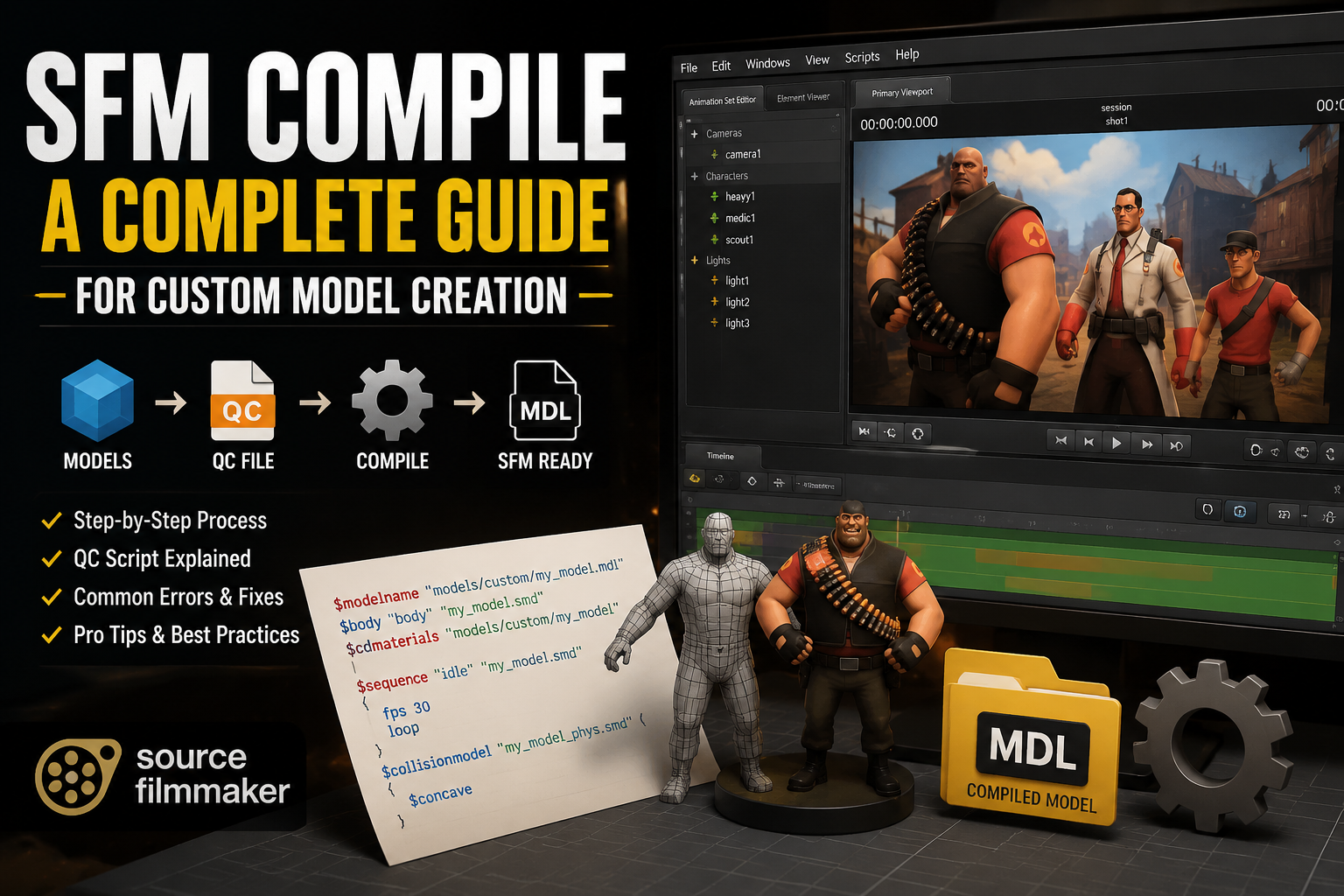
Introduction:
If you’re diving into the world of 3D animation using Source Filmmaker (SFM), understanding the SFM compile process is essential for creating high-quality s8. SFM compile is the bridge that converts your 3D models into the Source Engine’s MDL format, making them ready for use in cinematic animations. While the process may seem complex at first, mastering it opens up endless possibilities for animating characters, environments, and scenes s8. In this guide, we’ll break down the SFM compile process step-by-step, covering everything from basic setup to advanced techniques that will elevate your animation projects.
Understanding SFM Compile: What is it?
SFM compile is the process that converts your 3D model files, such as FBX or OBJ, into the MDL format compatible with Source Filmmaker. This is a crucial step in the animation pipeline, as it allows you to bring your custom assets to life within the Source Engine. The process includes:
- Model Geometry: Creating 3D meshes that define the shape of your models.
- Textures: Applying materials and textures that add realism to your models.
- Bones and Animations: Setting up skeletons for character animations and ensuring the model moves naturally.
- Physics Properties: Defining how objects interact with the environment.
Essential Tools for SFM Compile
To successfully compile models for SFM, you’ll need the right set of tools:
- Studiomdl Command Line Utility:
- The core utility used to compile models into the MDL format.
- Executes commands through terminal windows and requires basic knowledge of scripting.
- Crowbar:
- A graphical user interface (GUI) tool that simplifies the compiling process.
- Ideal for beginners as it removes the need to manually input terminal commands.
- 3D Creation Software:
- Blender is a popular choice among animators due to its cost-free nature and plugin support.
- 3ds Max and Maya are also options but come with hefty licensing fees.
- Text Editor:
- Notepad++ is widely used for editing QC scripts, offering features like syntax highlighting that aid in debugging.
Step-by-Step Guide to SFM Compile
Step 1: Preparing Your Assets
Before compiling, ensure that your assets are optimized:
- Model Complexity: Keep polygon count below 60,000 triangles for smoother performance.
- Bone Hierarchy: Follow Source Engine conventions to avoid rigging issues.
- Separate Physics Models: Export collision models and reference meshes separately as SMD files.
- Texture Paths: Verify texture paths are correct to avoid the dreaded purple-black checkerboard pattern caused by missing materials.
Step 2: Creating QC Files
QC scripts define the properties of the model and how it will behave in SFM. Key elements include:
$modelname– Sets the output location and filename for your model.$body– References the mesh file.$cdmaterials– Specifies where to find the textures.$sequence– Defines animation sequences.$collisionmodel– Sets the physics mesh.
Ensure your QC script is well-commented and file paths are accurate to prevent errors during compilation.
Step 3: Compiling Your Model
- Using the Command Line:
- Open the terminal and navigate to the folder containing studiomdl.exe.
- Execute the compile command, inputting the path to your QC script.
- Wait for the process to finish and review any errors or warnings in the terminal.
- Using Crowbar:
- Open Crowbar, select the QC file, and press the compile button.
- The graphical interface will provide real-time feedback, including error messages.
Troubleshooting Common SFM Compile Errors
Despite careful preparation, you might encounter some common issues during the compile process. Here’s how to troubleshoot:
- Missing Textures:
- The model will appear with a purple-black checkerboard pattern. Ensure your texture paths are correctly defined in the QC file and that the textures are placed in the correct directory.
- Invisible Models:
- Scale errors may result in models not appearing in the SFM viewport. Double-check the model’s scale settings in your 3D creation software.
- Rigging Failures:
- If bones aren’t behaving correctly, revisit the bone structure and ensure it matches the Source Engine’s requirements for rigging.
Advanced Techniques for SFM Compile
Once you’ve mastered the basics, it’s time to explore advanced features that can enhance your models and animations:
- Level of Detail (LOD):
- Implement LOD systems to improve performance by reducing the model complexity based on the camera’s distance.
- Facial Flexes:
- Add facial animation controls for expressive character animations.
- Custom Shaders:
- Enhance material appearances with custom shaders for more realistic reflections, lighting, and surface details.
- Batch Compilation:
- Automate the compilation process for multiple models using batch scripts or Python, streamlining your workflow.
Best Practices for SFM Compile
- Organize Your Files: Keep models, textures, and scripts in separate folders for easy navigation.
- Test Regularly: After making changes to a model or animation, always test in SFM to catch issues early.
- Study Professional Models: Decompile and analyze existing models to understand how professional assets are structured.
Conclusion
Mastering the SFM compile process is a valuable skill for any animator working with Source Filmmaker. By following the steps outlined in this guide, you can create high-quality, professional animations. From troubleshooting common errors to applying advanced techniques like facial animation and custom shaders, each phase of the process opens new possibilities for your projects. Keep experimenting, and as you grow more familiar with the tools and techniques, your animation skills will improve significantly. Happy animating!
