

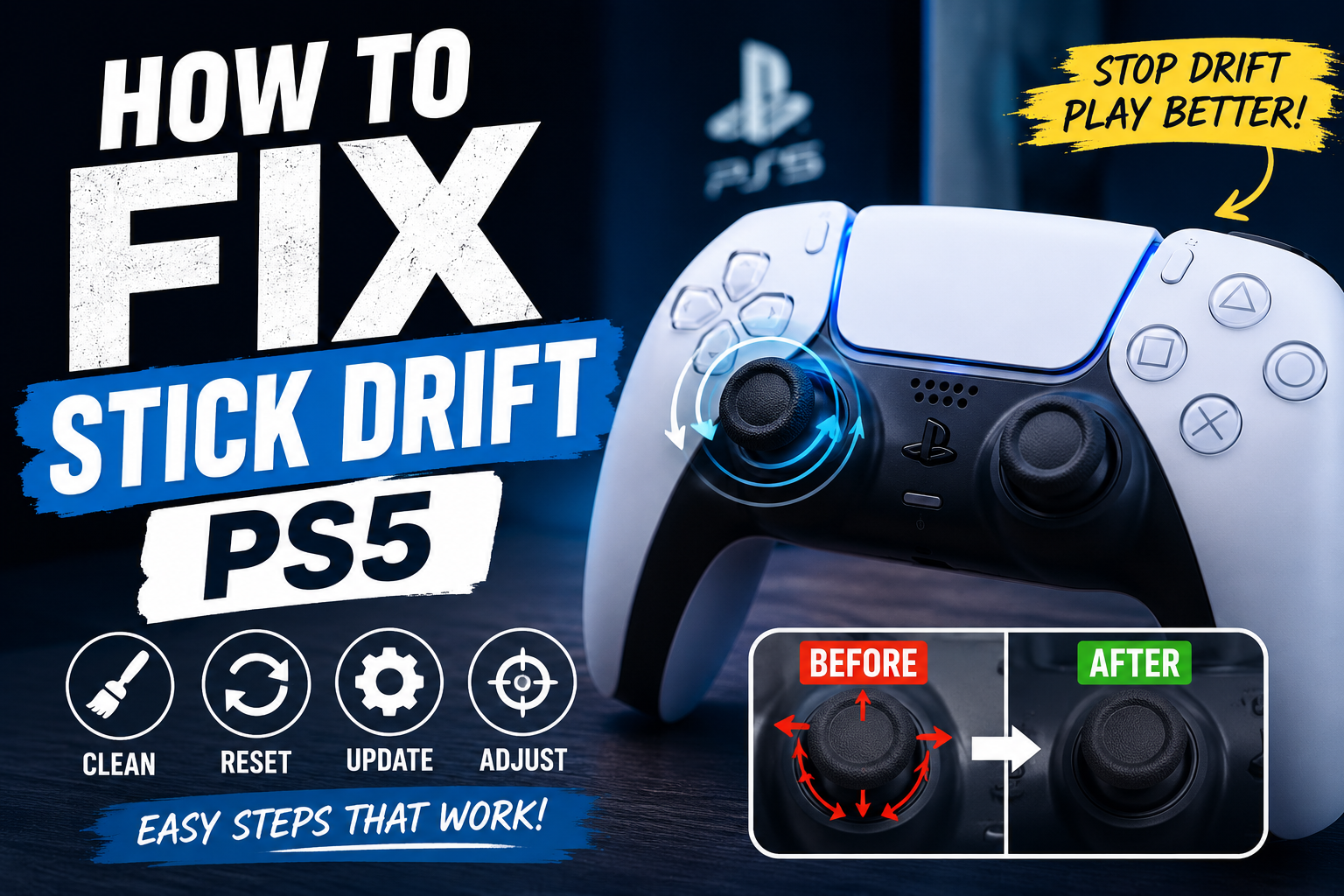
Stick drift can ruin a good game fast. One moment your aim is steady, and the next your character starts walking, aiming, or turning without you touching the stick.
If you are searching for how to fix stick drift ps5, the good news is that you can try several safe fixes before replacing the controller. Some fixes take only a few minutes, while others help you decide whether the problem is dust, settings, software, or worn hardware.
As gamers often say, “A small drift feels small until it costs you the match.” That is exactly why it is worth fixing early instead of ignoring it.
What Is PS5 Stick Drift?
PS5 stick drift happens when the analog stick sends movement signals even when your thumb is not touching it. Your character may move forward, the camera may turn by itself, or the cursor may slide across menus.
This usually happens because the stick sensor is dirty, worn, or not reading the center position correctly. It can also happen after heavy use, drops, dust buildup, or software glitches.
When people search for how to fix stick drift ps5, they usually want a quick answer. Start with cleaning and resetting before thinking about replacement.
First, Test the Drift Properly
Before fixing anything, test the controller in different places. Open your PS5 home screen, move through menus, and see if the cursor moves by itself.
Then test it inside two or three games. Some games have very sensitive stick settings, so drift may appear worse in one game than another.
Also check both sticks separately. The left stick usually affects movement, while the right stick controls camera or aim.
If the drift happens everywhere, the controller is likely the issue. If it happens in only one game, the game’s settings may need adjustment.
Restart Your PS5 and Controller
Start with the simplest fix. Turn off your PS5 completely, not just Rest Mode. Wait for a short moment, then turn it back on.
Next, turn the controller off and connect it again using a USB-C cable. Press the PS button and test the sticks again.
This may sound too basic, but small software hiccups can make input feel strange. “The easiest fix is often the one people skip first.”
If the drift disappears after restarting, you may not need to do anything else.
Clean Around the Analog Sticks
Dust, crumbs, skin oil, and tiny debris can settle around the stick base. That buildup can disturb the stick movement and create light drift.
For many users searching for how to fix stick drift ps5, cleaning is the best first real step.
Use a soft microfiber cloth to wipe around both sticks. Rotate each stick slowly in circles while cleaning the edge where the stick meets the controller shell.
You can also use short bursts of compressed air around the stick base. Keep the can upright and do not spray too close.
Avoid pouring liquid into the controller. Too much moisture can damage the inside and make the problem worse.
Move the Sticks in Full Circles
After cleaning, move each analog stick in full circles for 30 to 60 seconds. Push the stick gently to every edge.
This helps loosen small debris around the stick mechanism. It can also help the stick return to center more smoothly.
Do not force the stick. If you hear cracking, grinding, or feel rough movement, stop and inspect the controller.
Think of it like cleaning grit from a door hinge. Gentle movement helps, but forcing it can break something.
Reset the DualSense Controller
A controller reset can help when the drift is linked to a temporary input issue. It is one of the safest steps when learning how to fix stick drift ps5 at home.
Turn off your PS5 first. Then disconnect the controller from the USB cable.
Look at the back of the DualSense controller. You will see a small reset hole near the Sony logo.
Use a pin, SIM tool, or small paperclip to press and hold the reset button for at least five seconds.
After that, connect the controller to the PS5 with a USB-C cable and press the PS button. Test the sticks again.
Update the PS5 System Software
Outdated system software can sometimes cause controller problems or stop controller updates from working properly.
Go to Settings, then System, then System Software. Check for updates and install anything available.
After updating the console, restart the PS5 and test the controller again.
If you are trying to learn how to fix stick drift ps5, do not skip updates. They may not fix worn hardware, but they can fix controller communication issues.
Update the DualSense Controller Software
The DualSense controller also has its own device software. Keeping it updated helps the controller work smoothly with the console.
Go to Settings, then Accessories, then Controller. Look for DualSense Wireless Controller Device Software and update it if the option appears.
You can also update the controller through a PC using PlayStation’s official accessories app.
After the update, reconnect the controller and test the sticks in a calm menu or training mode.
Adjust Deadzone Settings in Games
A deadzone is the small area where the stick can move without sending input. If the deadzone is too low, even tiny stick movement may show as drift.
Many shooters, racing games, and competitive games let you adjust stick deadzone in settings.
Increase the deadzone slightly and test again. Do not raise it too much, or aiming may feel slow and less responsive.
This does not repair the controller, but it can reduce light drift. For mild cases, it may make the controller usable again.
When people ask how to fix stick drift ps5, deadzone adjustment is one of the fastest comfort fixes.
Check Game Sensitivity Settings
Sometimes drift feels worse because the sensitivity is too high. A small stick reading can cause big movement on screen.
Lower the camera sensitivity or aim sensitivity a little. Then test the same area again.
If the drift becomes less noticeable, the controller may have mild wear, but the game settings were making it feel worse.
This is common in fast games where aiming is very sensitive. A tiny unwanted input can feel like a big pull.
Reconnect the Controller with USB
Bluetooth interference can sometimes cause odd controller behavior. It usually causes lag or disconnects, but testing with USB is still useful.
Connect the DualSense controller directly to the PS5 using a good USB-C cable. Then play for a few minutes while wired.
If the drift is gone when wired, the issue may be connection-related. If it continues, the analog stick itself may be the problem.
Use a strong cable that supports data, not just charging. Some cheap cables only charge and do not connect properly.
Check for Physical Damage
Look closely at the drifting stick. Is it loose? Does it sit lower than the other stick? Does it feel sticky or rough?
If the controller was dropped, the stick mechanism may have shifted or cracked. Cleaning and resetting may not fix that.
Also check if the stick cap is rubbing against the controller shell. Dirt around the edge can make it harder for the stick to return to center.
If the stick feels physically damaged, repair or replacement is usually the better choice.
What If You Have a DualSense Edge?
The DualSense Edge has more options than the standard DualSense. You can adjust stick sensitivity and deadzone through custom profiles.
Go to Settings, then Accessories, then DualSense Edge Wireless Controller. Open Custom Profiles and adjust Stick Sensitivity/Deadzone.
This can help reduce drift if the issue is light. It also gives you more control over how each stick responds.
The DualSense Edge also supports replaceable stick modules. If one module is faulty, you may be able to replace the module instead of replacing the whole controller.
For Edge owners searching for how to fix stick drift ps5, this is a major advantage.
Should You Open the Controller?
Opening a standard DualSense controller is not the best first move. It can damage small parts and may affect warranty options.
Only consider opening it if the controller is already out of warranty and you are comfortable with small electronics.
Even then, be careful. The inside has ribbon cables, screws, clips, and delicate parts.
A safer choice is official repair, a professional technician, or replacing the controller if the cost makes sense.
When Cleaning Does Not Work
If cleaning, resetting, updating, and settings changes do not help, the stick sensor may be worn out.
Analog sticks are moving parts. Over time, they can wear down from long gaming sessions, pressure, dust, and repeated movement.
At this stage, the drift is not just a small software issue. It is likely a hardware problem.
That is when repair or replacement becomes the practical answer.
How to Prevent PS5 Stick Drift
You cannot prevent stick drift forever, but you can reduce the risk.
Keep the controller clean and store it away from dust. Do not eat snacks directly over it, especially crumbly foods.
Avoid pressing the sticks too hard during intense games. Heavy pressure wears the mechanism faster.
Keep your hands clean before playing. Oils and dirt from your fingers can build up around the stick base.
Also avoid tossing the controller on a bed, couch, or floor. A small fall can shift internal parts.
Best Order to Fix PS5 Stick Drift
Here is the best order to follow if you want a simple path:
- Restart the PS5 and reconnect the controller.
- Clean around both analog sticks.
- Move the sticks gently in full circles.
- Reset the DualSense controller.
- Update PS5 system software.
- Update DualSense controller software.
- Adjust in-game deadzone settings.
- Test with a USB cable.
- Check for physical damage.
- Use repair or replacement if the issue continues.
This order keeps the safest fixes first and the expensive options last.
Common Mistakes to Avoid
Do not spray liquid directly into the controller. It may seem quick, but it can damage the electronics.
Do not use too much force when moving the analog stick. If the stick is already weak, forcing it can make the drift worse.
Do not ignore drift for months. It often gets worse over time, especially if dirt or wear is the cause.
Do not assume every drift problem needs a new controller. Many light cases improve with cleaning, resetting, or deadzone changes.
Is PS5 Stick Drift Permanent?
Sometimes it is temporary. Dust, software bugs, bad settings, and connection problems can all create drift-like behavior.
But if the stick sensor is worn, the drift may come back even after cleaning. In that case, it is usually a hardware issue.
The best approach is to start with easy fixes first. If the drift keeps returning, repair or replacement is more realistic.
As the saying goes, “A controller that keeps fighting your thumb is no longer helping you play.”
Quick Answer: how to fix stick drift ps5
To fix PS5 stick drift, clean around the analog sticks, restart the console, reset the DualSense controller, update the controller software, and adjust game deadzone settings.
If the drift continues after all basic fixes, the stick may be worn or damaged. At that point, use PlayStation repair support, replace a DualSense Edge stick module, or consider a new controller.
This is the safest and most practical way to handle how to fix stick drift ps5 without jumping straight to replacement.
FAQs About how to fix stick drift ps5
Why is my PS5 controller moving by itself?
Your PS5 controller may move by itself because of stick drift. This can happen when dust, wear, or sensor problems make the analog stick send movement signals without your touch.
Can I fix PS5 stick drift without opening the controller?
Yes, you can try cleaning, resetting, updating, and adjusting deadzone settings without opening the controller. These steps are safer and should be tried first.
Does resetting the DualSense fix stick drift?
Resetting can help if the issue is related to software or input glitches. If the stick is physically worn, resetting may not solve it permanently.
Does increasing deadzone fix PS5 stick drift?
Increasing deadzone can hide mild drift in games that support it. It does not repair the stick, but it can make gameplay feel normal again.
Should I replace my PS5 controller because of drift?
Replace it only if cleaning, resetting, updating, and settings changes do not work. If the controller is still under warranty, check repair options first.
Final Thoughts
Learning how to fix stick drift ps5 is mostly about starting simple. Clean the sticks, reset the controller, update the software, and test settings before spending money.
If the drift is light, these steps may bring the controller back to normal. If the drift is heavy or keeps returning, the analog stick may be worn and ready for repair.
A good controller should feel invisible in your hands. When it starts moving on its own, fix it early so your gameplay feels sharp, fair, and fun again.
